
Practical AI video guidance
Extract AI Video Frames and Build a Review Contact Sheet
Make an AI video contact sheet with tested FFmpeg commands, real frame timestamps and a downloadable sample. Inspect adjacent frames before editing or delivery.
Updated
Create with VidVidA contact sheet helps you locate moments to review in an AI video. Extract neighboring frames at full resolution, then watch the original with sound before accepting or replacing a shot. A small grid cannot establish that every frame is clean.
This guide uses an existing public VidVid sample and reproducible local commands, tested on October 28, 2026 with FFmpeg 8.0.1. Frame extraction runs on your computer; it is not a control in the VidVid generator. No new paid generation was used for this example.
Make a six-frame contact sheet
Install FFmpeg and make sure ffmpeg and ffprobe work in your terminal. Download the original sample, put it in an empty working folder, and run:
ffmpeg -hide_banner -loglevel error -n \
  -i minimax-h3-card-A.mp4 \
  -vf "select='not(mod(n,24))',scale=336:192,tile=3x2:padding=8:margin=8" \
  -frames:v 1 contact-sheet.png
In this command, n starts at zero; selecting multiples of 24 and arranging them in a three-column, two-row grid produces six samples. The versioned FFmpeg filter documentation defines the frame selection and tile layout. Scaling makes the grid compact; it also removes detail. Do not judge small fingers, text or texture from these thumbnails.
Our input has 124 decoded video frames at 24 fps, with a video duration of 5.166667 seconds. The command created this 1040 × 408 PNG:
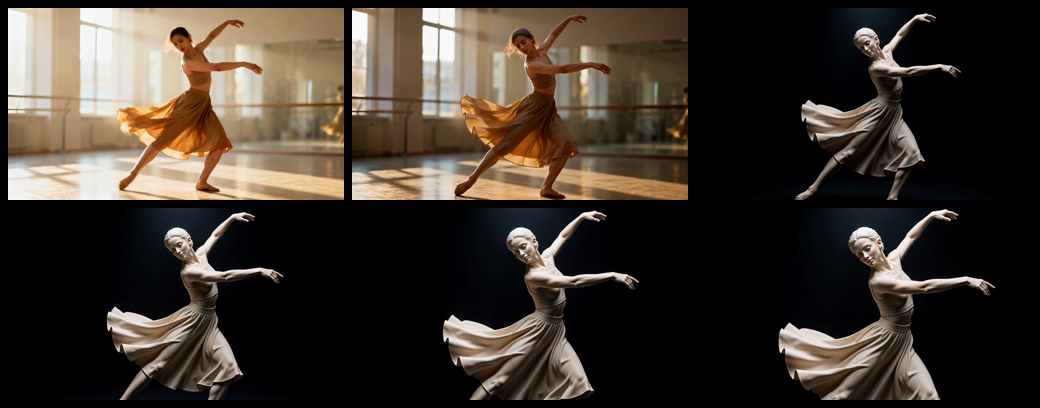
Read left to right, then the second row. The first two tiles show a warm studio; by the third sample the background is dark and the dancer appears statue-like. That visible change is a reason to check the intended shot. It is not automatically a defect: the creative brief might require a transformation.
Map each tile to the source
For this file, the selected frames have the following presentation timestamps, read with ffprobe. These are measured values, not estimates from the output image names.
| Tile | Source frame index, starting at 0 | Timestamp in seconds |
|---|---|---|
| 1 | 0 | 0.000000 |
| 2 | 24 | 1.000000 |
| 3 | 48 | 2.000000 |
| 4 | 72 | 3.000000 |
| 5 | 96 | 4.000000 |
| 6 | 120 | 5.000000 |
To inspect timestamps for your own file:
ffprobe -v error -select_streams v:0 -show_frames \
  -show_entries frame=best_effort_timestamp_time \
  -of json minimax-h3-card-A.mp4 > timestamps.json
Count the JSON frame entries from zero when mapping the source indexes. Preserve the full output beside your review notes. Selecting every 24th frame gives one-second spacing here; a different frame rate or variable-rate file needs its own timestamp check. Reusing this stride does not guarantee one-second intervals.
This command outputs only the first six selected frames into one sheet. For a longer clip, plan more sheets or review individual shot ranges. A successful command alone does not mean the whole video was covered.
Extract neighboring frames without thumbnail scaling
To inspect the area around the third tile, extract source frames 47–49:
ffmpeg -hide_banner -loglevel error -n \
  -i minimax-h3-card-A.mp4 \
  -vf "select='between(n,47,49)'" \
  -fps_mode passthrough frame-%02d.png
This produced three 1344 × 768 PNGs in our local run. Their source timestamps were 1.958333, 2.000000 and 2.041667 seconds. frame-01.png means the first extracted image, not source frame 1. The FFmpeg output timing documentation describes passthrough timing; keep the source-index and timestamp mapping in your notes rather than inferring timing from numbered PNG filenames.
Inspect a wider neighborhood if the change starts outside this interval. A one-second sampling gap can hide a brief malformed hand or flash. Conversely, a single unusual still may be acceptable motion blur during playback. Neither the grid nor three extracted images provides a complete temporal-quality verdict.
Decide whether the shot needs work
Use the original brief to define acceptance conditions before reviewing. For a product shot, that might be a readable label and unchanged product shape during the required hold. For a transformation shot, a planned material change may be acceptable, while a change before the planned beat needs review.
Record one decision per issue:
| Field | What to record |
|---|---|
| Source | Filename, SHA-256, export version |
| Location | Source frame indexes and timestamps |
| Requirement | The specific brief condition to preserve |
| Evidence | Grid location, full-resolution frames, playback observation |
| Decision | Accept, inspect further, edit, or replace the shot |
| Follow-up | Owner and which later edits must be checked again |
Watch the original at normal speed, inspect the marked interval, and listen to its audio. PNG extraction cannot assess sound or synchronization. After editing, repeat the review on the delivery export: a clean source does not prove a clean export. Use the file inspection guide for resolution, duration and audio checks, the artifact guide for symptom-specific remedies, and the storyboard workflow when replacing a shot changes the sequence.
Download the evidence and understand its scope
Download the contact sheet, extraction manifest, or original file metadata. The manifest includes commands, hashes and the measured frame mapping so you can reproduce the extraction.
This is one file-processing example, not a model benchmark. The sample filename does not establish which provider settings produced it. We inspected the contact sheet and the middle extracted frame; we do not claim a complete frame-by-frame audit or prompt-compliance score. For your next project, open the video workspace, save the result and apply the same review before delivery.
If the file is too short for the brief, compare holding a frame, slowing the action and adding a shot with two measured 12-second exports.
What do you need to solve next?
Continue preparing inputs, fixing visual problems, or checking a video before delivery.
AI Video Artifacts: A Troubleshooting Checklist
Find where AI video blur, flicker or frozen motion begins. Compare source, download and export, choose a repair, and track required action and retry cost.
Check an AI Video File Before Editing or Delivery
Inspect AI video resolution, FPS, duration and audio with ffprobe. Compare a real original and edited export, with downloadable files, hashes and a diagnosis workflow.
Plan an AI Video Storyboard Before Generating Clips
Plan AI video shots and replace one clip with a worked timing example, adjacent-cut review and caption, audio and version checks.