
VidVid creation guide
AI Video Generator with Audio
Direct dialogue, foreground effects, ambience and camera as one synchronized scene instead of adding vague sound instructions at the end.
By VidVid · Updated
Key strengths
- Dialogue and action timing
- Layered ambience and effects
- Audio-aware shot planning
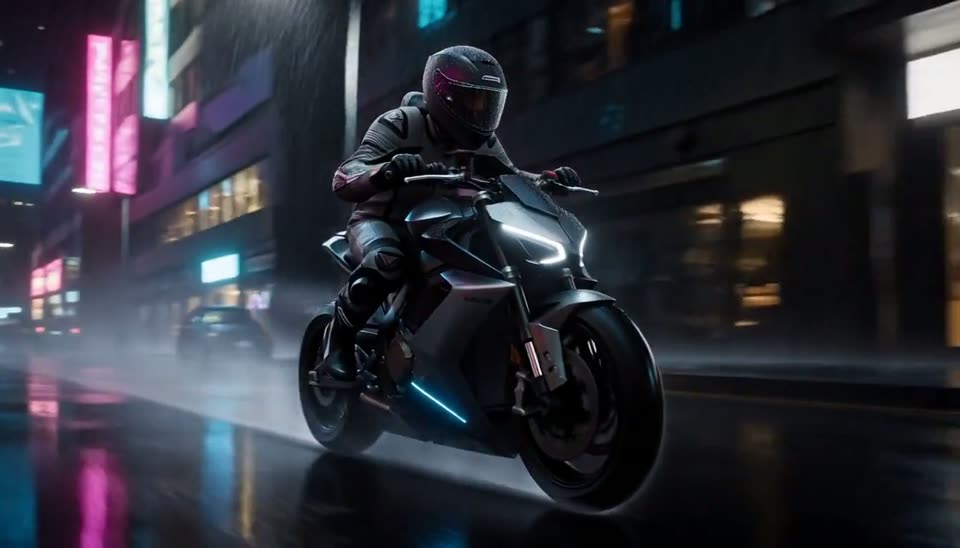
Image illustrates a VidVid workflow and is not presented as a controlled model benchmark.
Production use cases
Step-by-step workflow
- Break the scene into visible and audible beats.
- Write dialogue, effects and ambience as separate layers.
- Generate a short sync test and check timing.
- Revise timing before extending the scene.
Write a sound timeline
Attach dialogue and effects to visible actions or approximate seconds so the model has a synchronization target.
Separate sound layers
Name foreground effects, background ambience, dialogue and music independently. Say when a layer should be absent.
Protect intelligibility
Keep dialogue short, avoid overlapping key sounds and leave visual pauses where speech needs emphasis.
Pre-generation checklist
Dialogue
Write exact, short lines and speaker order.
Foreground
Tie key effects to visible actions.
Ambience
Define place, distance and continuity.
Mix
State music, silence and priority explicitly.
Prompts you can use
Six-second cafe scene. A barista places a cup down at 2s and says, 'Your usual.' Ceramic tap in the foreground, low cafe murmur behind, no music, slow push-in.
Rainy street product reveal: umbrella snaps open on the first beat, close thunder far away, rain stays continuous, logo appears visually with no spoken brand name.
A mechanic turns the ignition; engine starts after the key click, then settles into a low idle. Locked medium shot, workshop ambience, no soundtrack.
FAQ
Is AI Video Generator with Audio beginner-friendly?
Yes. Start with the shortest duration supported by the model to validate subject, camera and lighting before increasing duration or resolution.
How long should the prompt be?
Write the subject, motion, camera, lighting, format and sound requirements clearly. Avoid packing too many scene changes into one prompt.
When should I use image-to-video?
Use image-to-video when you already have a product photo, portrait, poster or first frame. Focus the prompt on motion and camera while preserving the subject.
How do I reduce iteration cost?
Use short, lower-resolution tests for A/B comparison, then render the final version after the model, composition and rhythm are stable.