VidVid creation guide
MiniMax H3 Video Generator
Create cinematic MiniMax H3 clips on VidVid with text prompts or reference images, using practical durations, aspect ratios and resolution controls.
By VidVid · Updated
Key strengths
- Commercial short-form storytelling
- Text-to-video and image-to-video workflows
- 3-15 second clips with 480p or 768p output
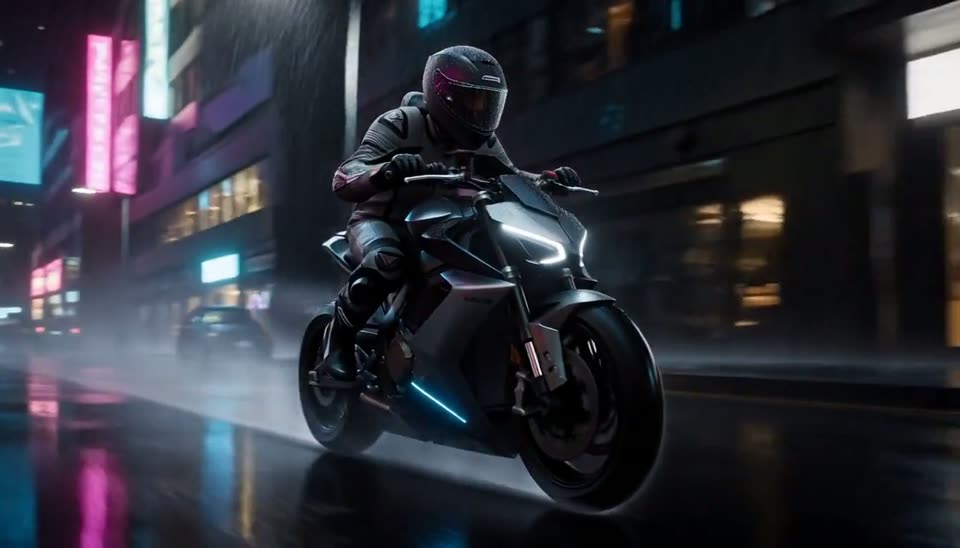
Image illustrates a VidVid workflow and is not presented as a controlled model benchmark.
Step-by-step workflow
- Choose a model and workflow for the asset goal.
- Generate a test with a focused prompt and the shortest supported duration.
- Review the subject, camera and any required text or audio; revise one issue at a time.
- After approving the direction, choose final duration and resolution from the supported options.
Pre-generation checklist
Goal
Is this clip for clicks, product clarity, visual exploration or a social hook?
Inputs
Do you need to preserve a face, product photo, logo, packaging text or first frame?
Camera
Specify push-in, orbit, handheld, locked-off or transition behavior, not just mood words.
Output
Choose 9:16, 16:9 or 1:1 before setting duration and resolution.
Prompts you can use
A premium sports watch product film, black ceramic case on wet slate, slow macro push-in, crisp reflections, subtle mechanical ticking.
Animate this fashion portrait: the model turns under hard studio light, fabric trails through frame, smooth circular camera move.
A compact dialogue scene in a neon convenience store, rain outside the window, natural room tone, handheld close-up.
A VIDVID brand bumper: glowing wordmark on a black acrylic wall, camera glides past reflective floor, soft stereo whoosh, luxury tech mood, no other text.
Image-to-video product ad: preserve the uploaded bottle label exactly, add rotating water droplets, slow 45-degree orbit, clean studio sound and controlled highlights.
FAQ
Is MiniMax H3 Video Generator beginner-friendly?
Yes. Start with the shortest duration supported by the model to validate subject, camera and lighting before increasing duration or resolution.
How long should the prompt be?
Write the subject, motion, camera, lighting, format and sound requirements clearly. Avoid packing too many scene changes into one prompt.
When should I use image-to-video?
Use image-to-video when you already have a product photo, portrait, poster or first frame. Focus the prompt on motion and camera while preserving the subject.
How do I reduce iteration cost?
Use short, lower-resolution tests for A/B comparison, then render the final version after the model, composition and rhythm are stable.